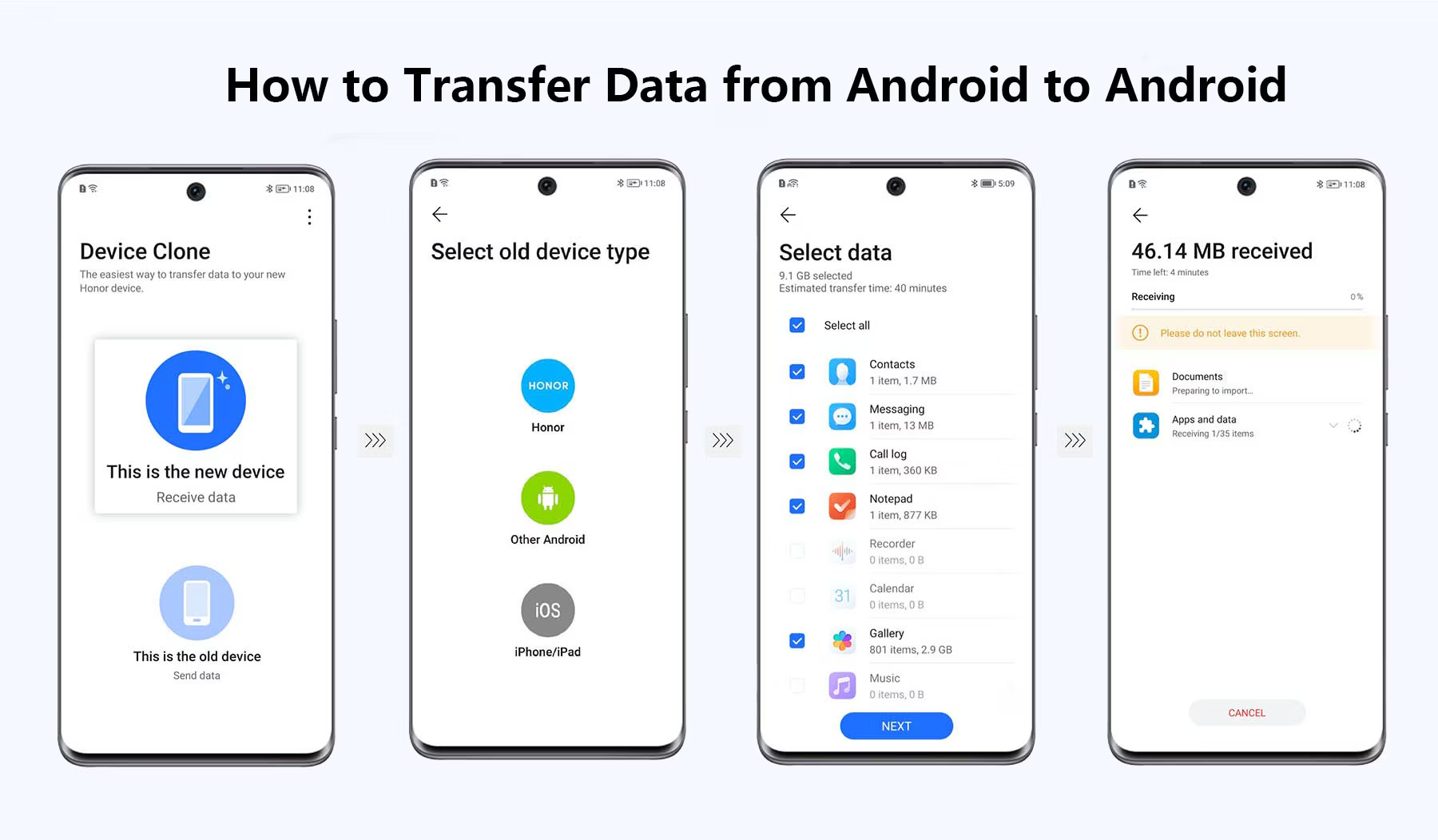
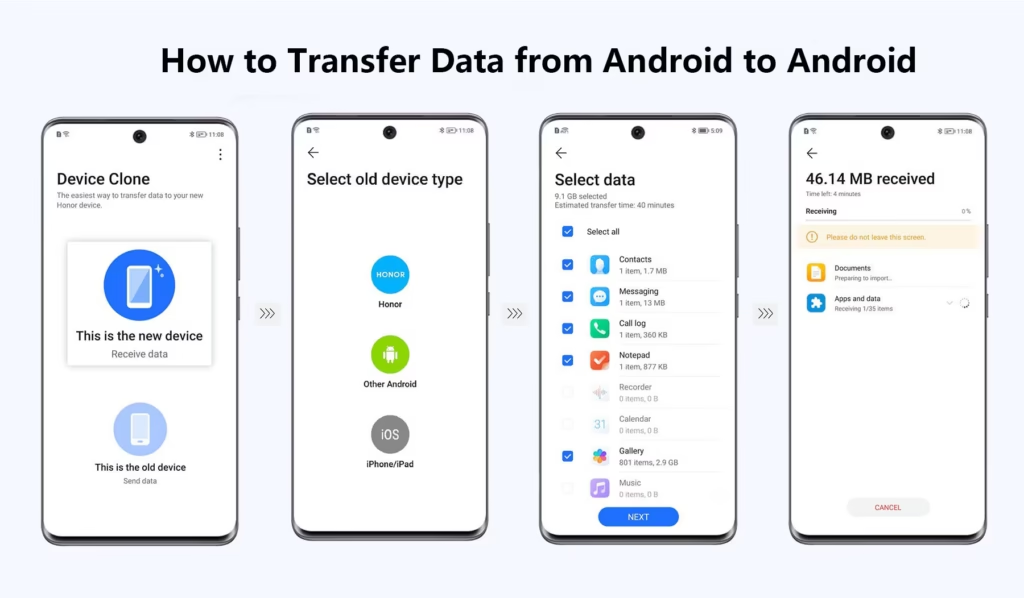
Switching from one Android phone to another is now easier than ever. When you upgrade to a new device or replace an old one, data transfer lets you keep your contacts, photos, apps, messages, and important files without losing anything valuable.
On this guide we’ll show you the best ways to transfer data from Android to Android, including wireless methods, transferring with a cable, cloud backup, and third-party tools.
Importance of data transfer
It also helps you when you move to a new Android device:
Keep your contacts and call log
Transfer photos and videos safely
Reset apps and settings
Save Files and Downloads
Keep conversations and messages
Reduce setup time on a new phone
And if you don’t do the transfer right, you might lose the important information on your old device.
How to Move Data from Android to Android
There are many reliable ways to transfer data from one Android device to another. The best method for you will depend on your internet speed, phone brand and how much data you want to transfer.
- Transfer Data with Google Backup
Google offers the simplest and safest way to transfer Android data.
How to: Step 1:
Open Settings on your previous phone
Head over to Google > Backup
Use backup by Google One
Tap Now Backup
Turn on new android phone
Sign in with the same Google account
During setup, choose the latest backup
Return to waiting for it to be fixed
What is transferred?
Contacts Apps
Wifi passwords
SMS texts
Settings for the device
Calendar data
Photos and videos (Google Photos)
Pros
Free & Secure
Wireless process
Simple for beginners
Disadvantages
Internet connection needed
Backups can take time if large
- Transfer through USB Cable
Most modern Android phones support direct transfer via cable.
Prerequisites
USB-C to USB-C cable or USB-C adapter
Both devices are charging
Steps:
Connect the phones with cable
Start setting up the new phone
Select Apps & Data Copy
Choose Use Cable
Follow the on-screen directions.
Select the data you want to transfer
Apps Data That Can Be Migrated
Photos Videos Contacts Texts
Benefits of Music Settings
More speed than transfer wireless
No Internet Required
More stable with big files
- Use Manufacturer Apps to Transfer
Many Android brands have dedicated transfer applications.
Popular Apps for Android Transfer
App for Transfer Brand
Samsung Smart Switch
Xiaomi Mi Mover OnePlus Clone Phone Oppo Clone Phone Vivo EasyShare
These apps make migration easy and will usually transfer almost everything from the old device.
- Bluetooth File Transfer
Bluetooth is good for transferring smaller files.
Steps: 1.
Turn on Bluetooth on both phones
Match the devices
Choose files to share
Share > Bluetooth
Accept Transfer Request
Best For Documents Photos
Short Video Restrictions
Slow speed of transfer
Not for large data
- Moving Data through Cloud Storage
With cloud platforms you can upload files on one device and download them on another.
Popular Cloud Services
Google Drive Dropbox More
OneDrive Process
Upload files from old phone.
Login on new device
Retrieve your files
Benefits
Open files from anywhere
Safe backup solution
Downsides
Limited free storage
Needs Internet connection
How to Transfer WhatsApp Data?
For many users, WhatsApp chats are important.
Transfer WhatsApp from Android to Android
Put WhatsApp on the new phone.
Check same number of phones
Restore from backup Google Drive
You can also use the WhatsApp in-built chat transfer feature using a QR code.
Tips to Safely Transfer Android Data
Prior to starting the process:
Charge both phones to over 50%
Connect to a reliable Wi-Fi
Save important files somewhere else
Update both phones to latest android version
Make sure you have sufficient storage on the new device
Common Data Transfer Problems
Slow Transfer Rate
Transfer by cable rather than wireless
Close background applications
Ensure you have a good Wi-Fi connection
Apps cannot restore
Check Google account sign in
Update the Play Store services
Reinstall applications manually if necessary
Photos or Videos Missing
Check Google Photos backup
Search internal storage folders
file manager applications
Best Way to Transfer Android to Android
For most users:
Google Backup is most convenient
Best for speed: USB Cable Transfer
Total migration best suited to Manufacturer Apps
Which one is best depends on your personal needs and internet availability.
Concluding Thoughts
Android to Android data transfer is now simple and user friendly. You can use Google Backup, a USB cable or Bluetooth or specialized transfer applications to safely transfer your important files and settings to your new device in just a few steps.
Always make a backup of your files before starting the transfer process to prevent accidental data loss. And the way to do it will let you enjoy your new Android phone without losing anything important.